Sign in and the reading position, bookmarks and highlights of your own EPUB and PDF files and your purchased books sync to your other devices. Pick up on the tablet or computer exactly where you stopped on your phone. Your own files send places and colors only, never note text, and sync can be turned off at any time.
Sign-in uses a TOBESTBOOKS account (free to create).
PositionChapter 1 · 37%
Bookmarks4
Highlights12
EPUB · PDF
Reflowing books and designed pages, both done right
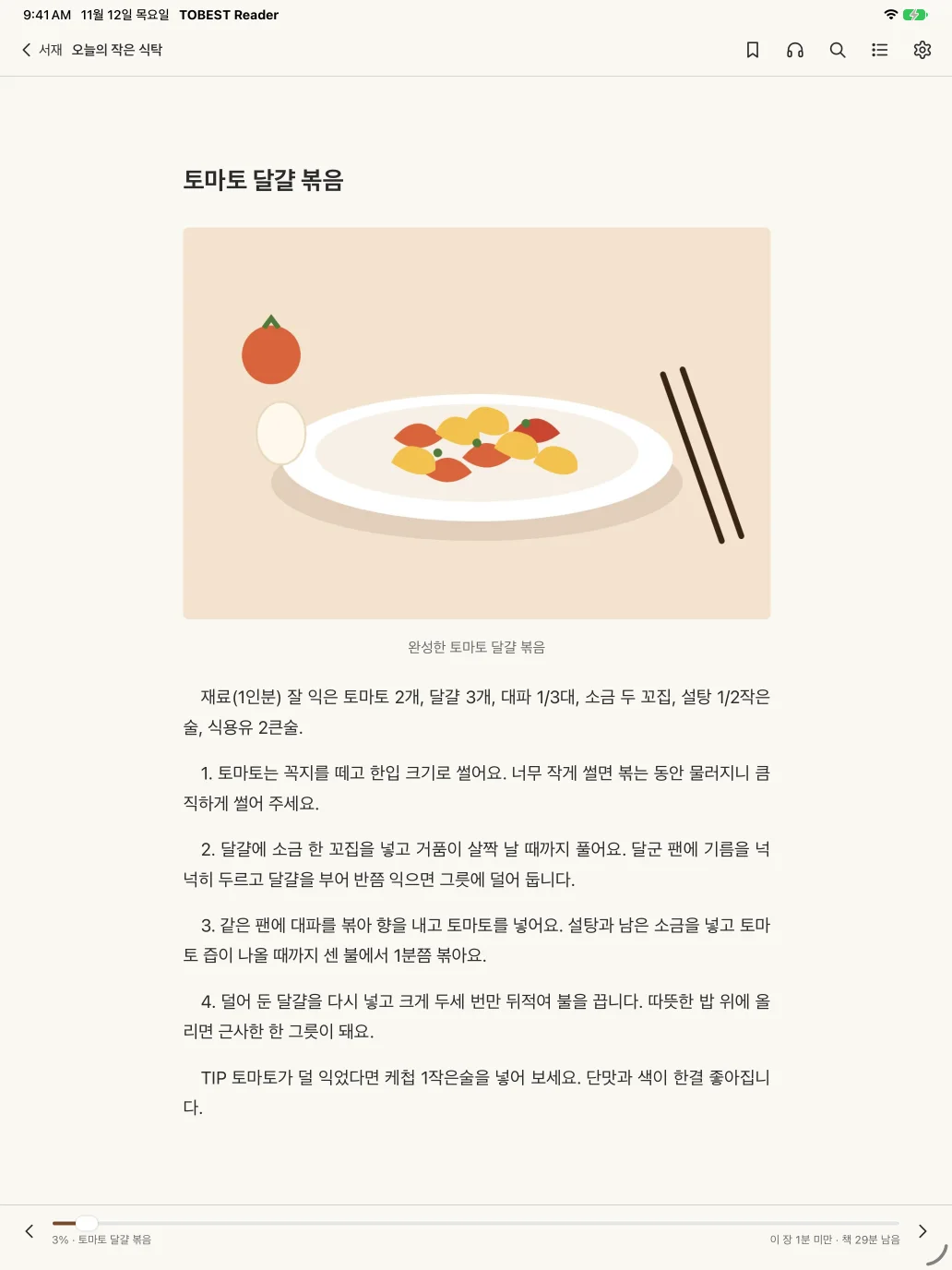
EPUB books such as novels and essays reflow to suit your eyes; designed PDFs such as magazines and textbooks keep their original layout.
EPUB
Text sized for your eyes, pictures kept sharp
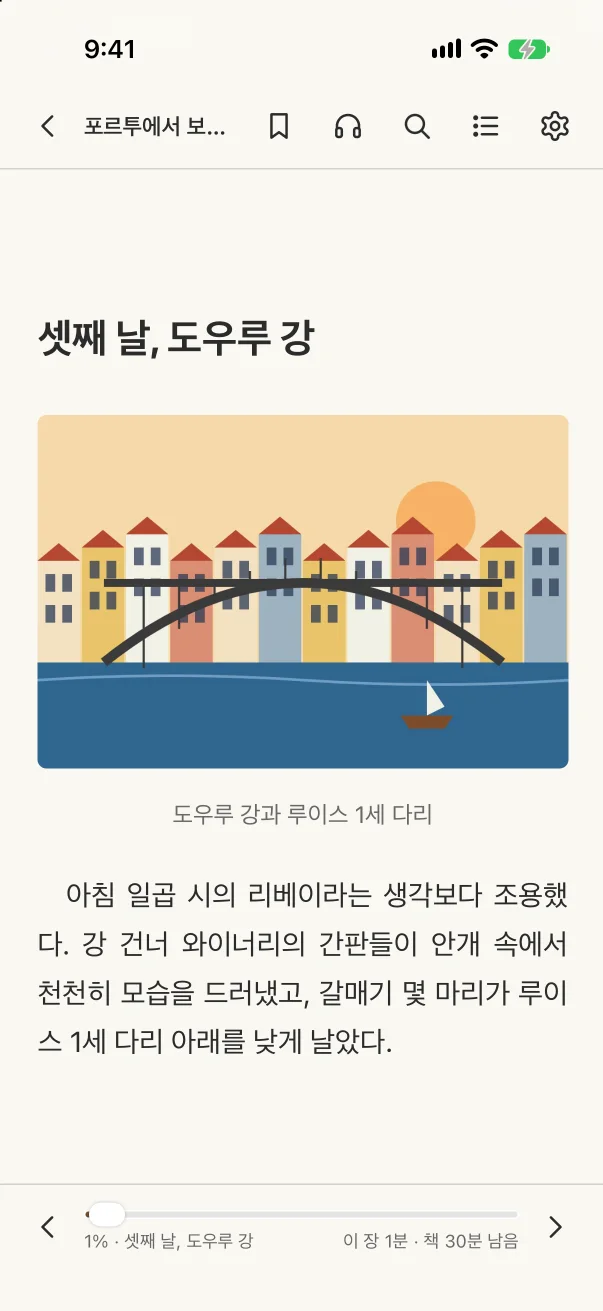
Change the font, size, line spacing or margins and the pages reflow. Pictures and photos in the book fit the width of the screen.
Sans, serif or your own font
Cookbooks and travel books with photos and captions
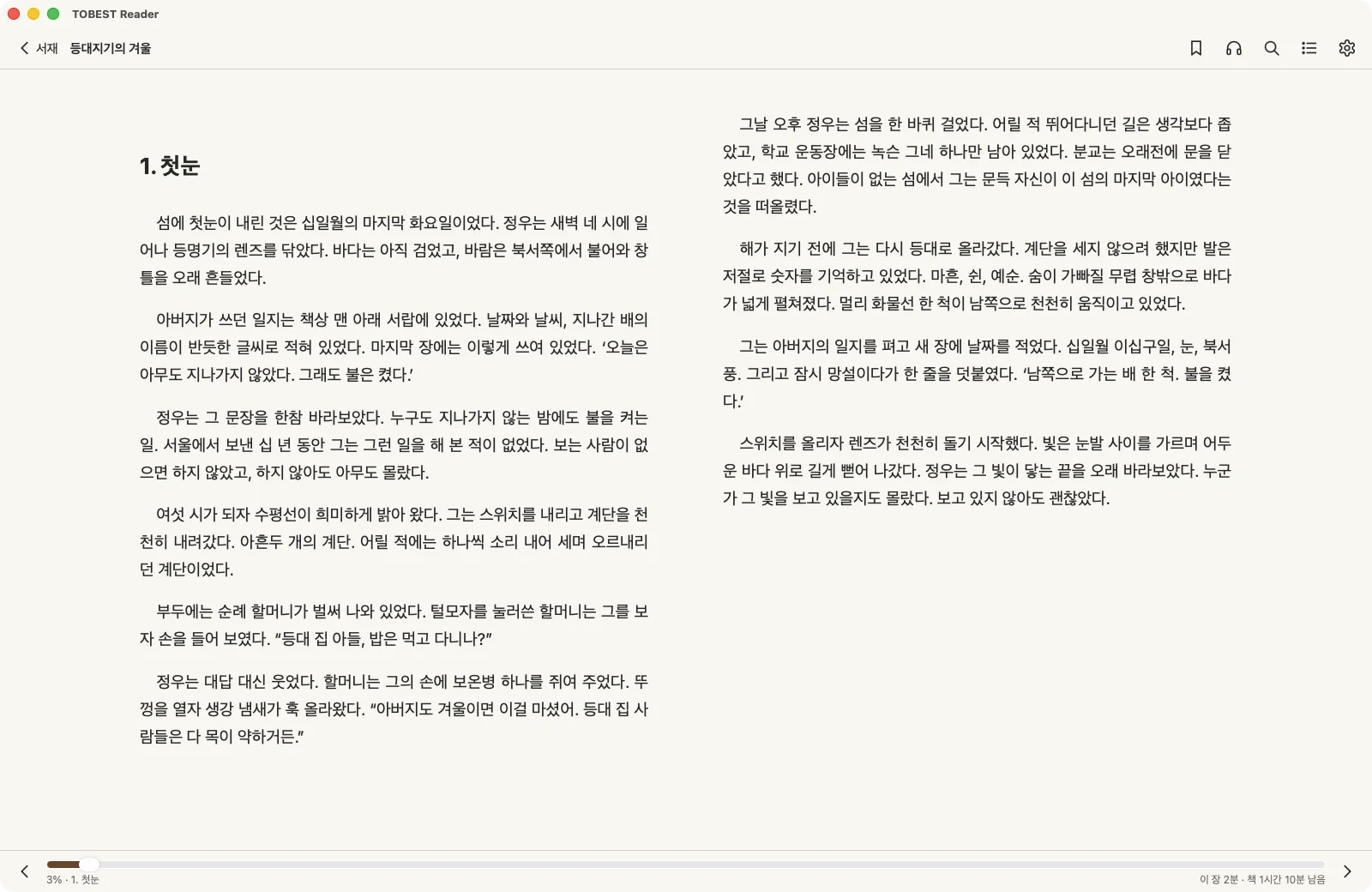
Two-page spreads on wide screens
PDF
Columns, tables and charts as designed
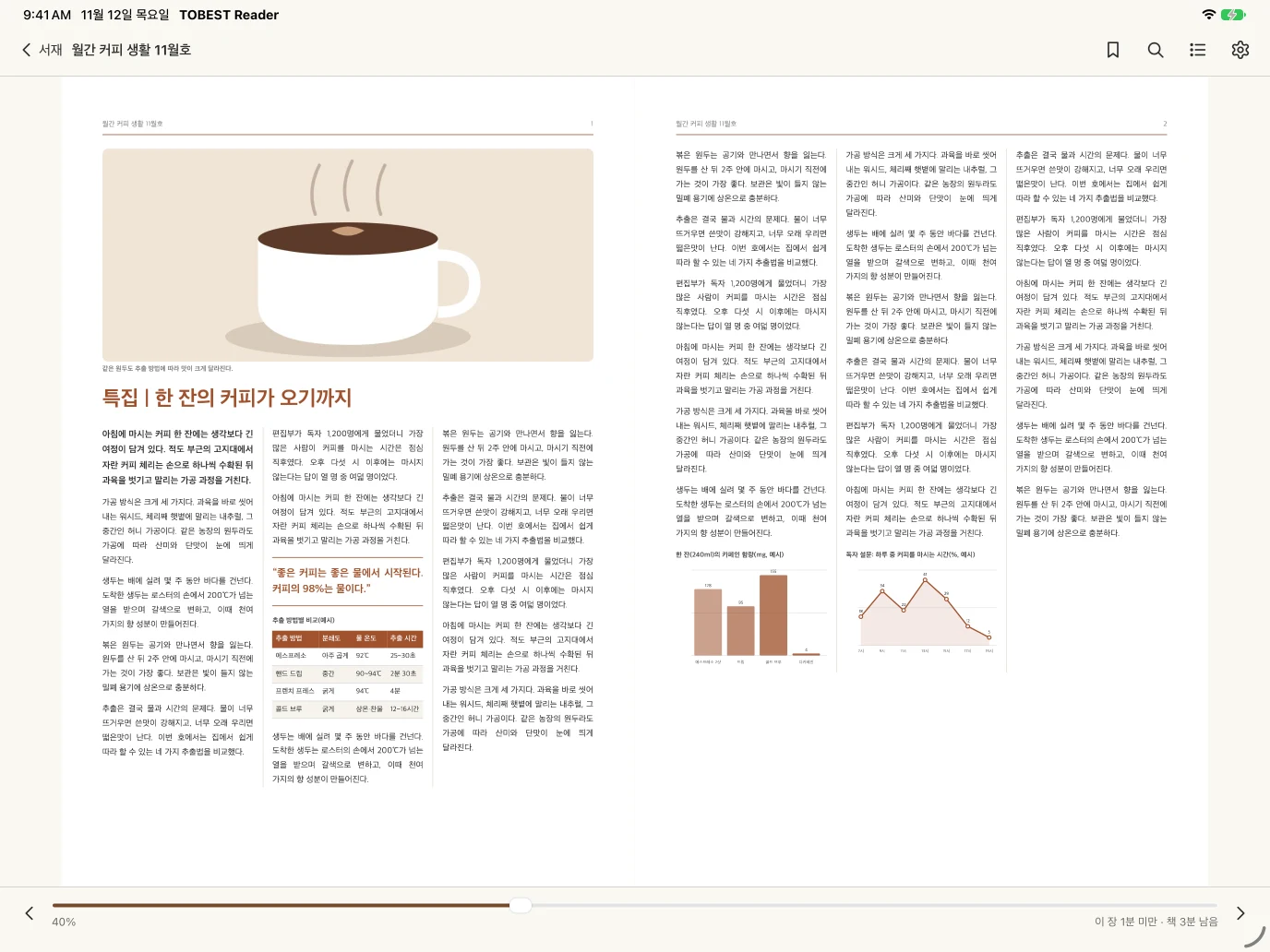
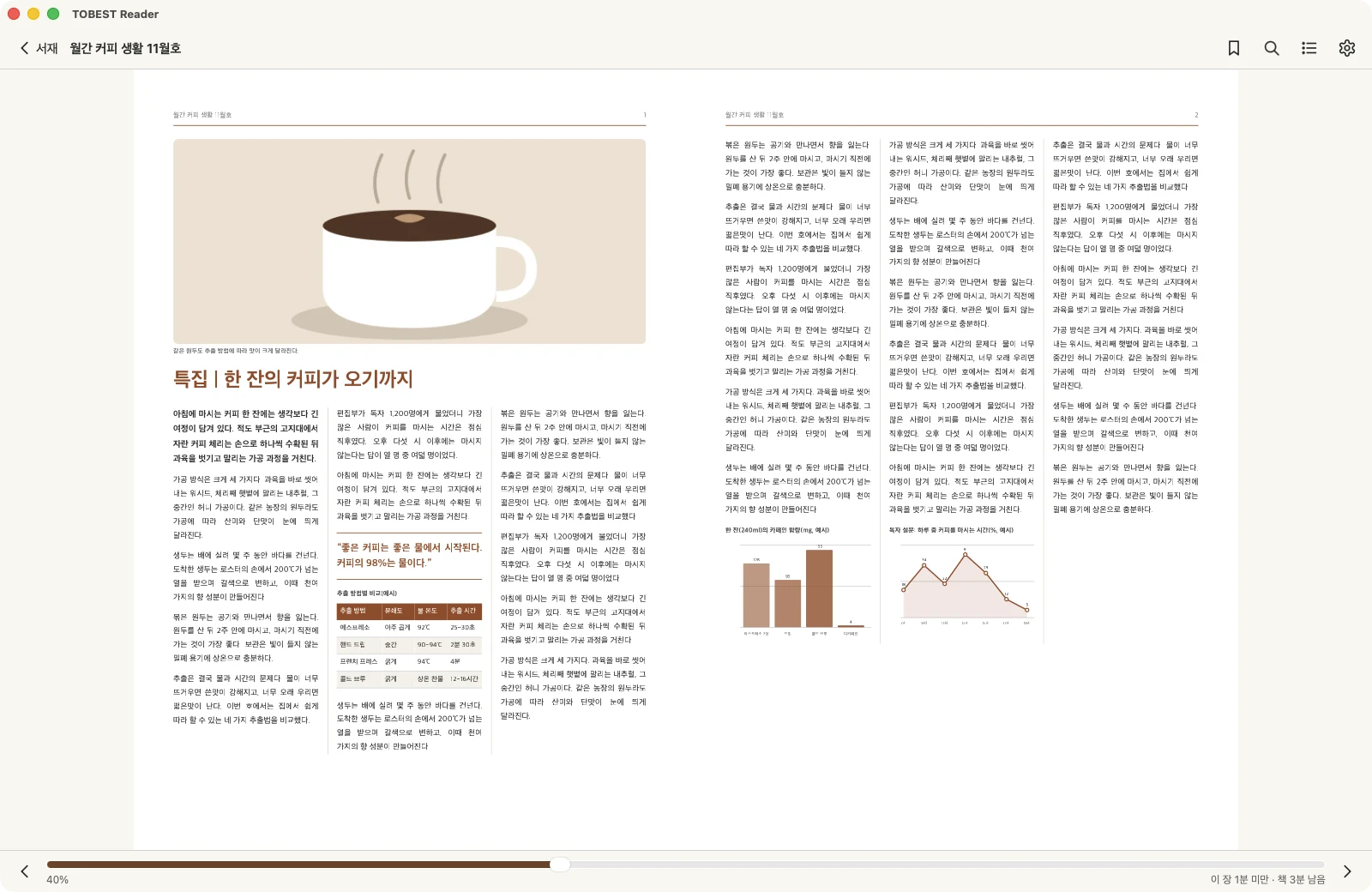
Designed pages appear as they are, with two-page spreads on wide screens. On a phone, Fit Text trims the margins so the text reads larger.
Fit Page · Fit Width · Fit Text · fixed zoom
Original colours or matched to your reading theme
Double-tap the middle to switch between Fit Text and Fit Page
Features
Comfortable for long reading
Calm like a printed book, with the tools you need to study a book in depth.
Fit text for PDF
Double-tap the middle of the page to drop the margins and fit the text to the screen width. Fit page, fit width, fixed zoom and two-page spreads are there too.
Two pages on wide screens
On a tablet in landscape or a computer, EPUB and PDF alike open as two pages side by side, like a book.
Library and collections
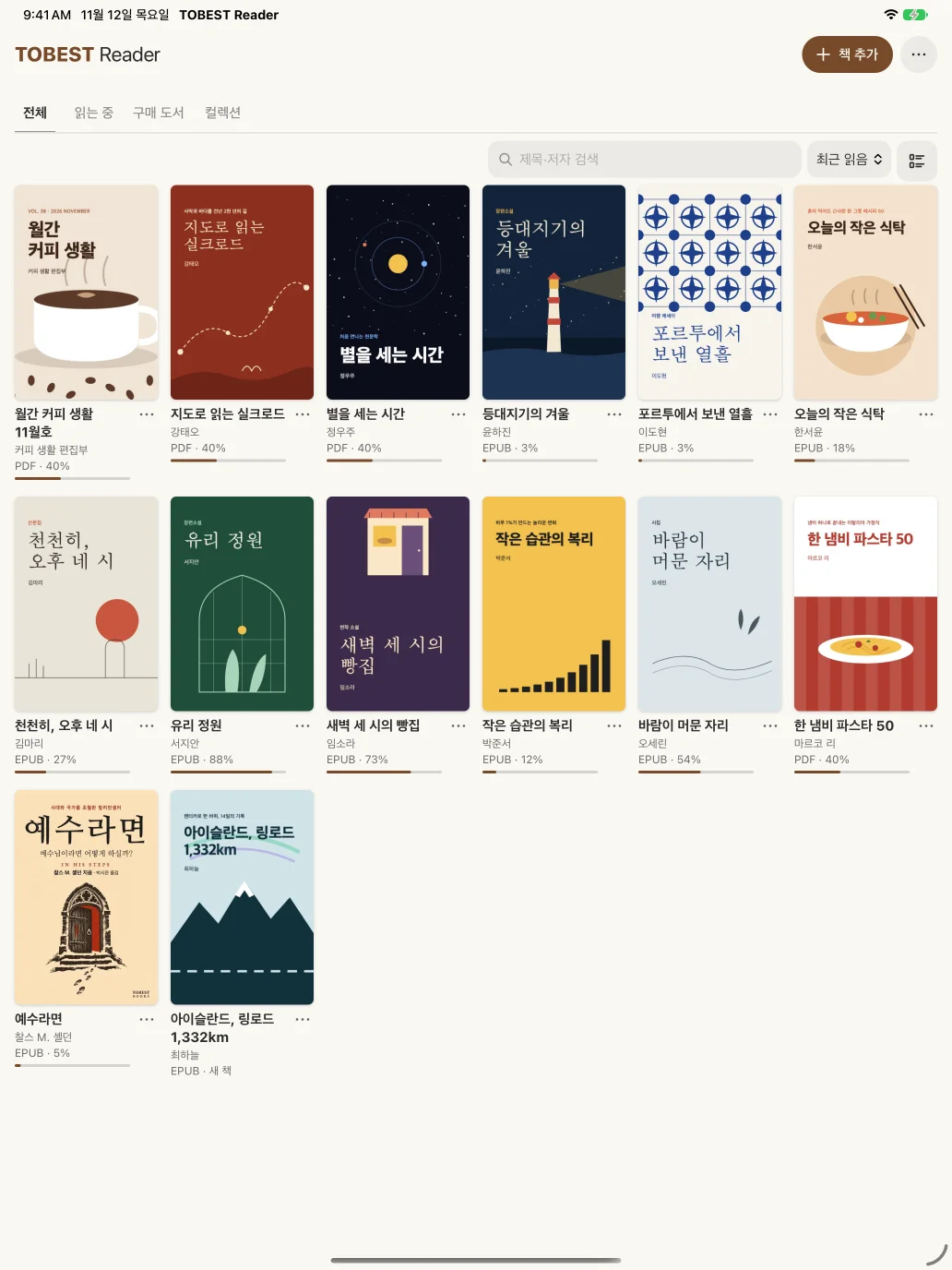
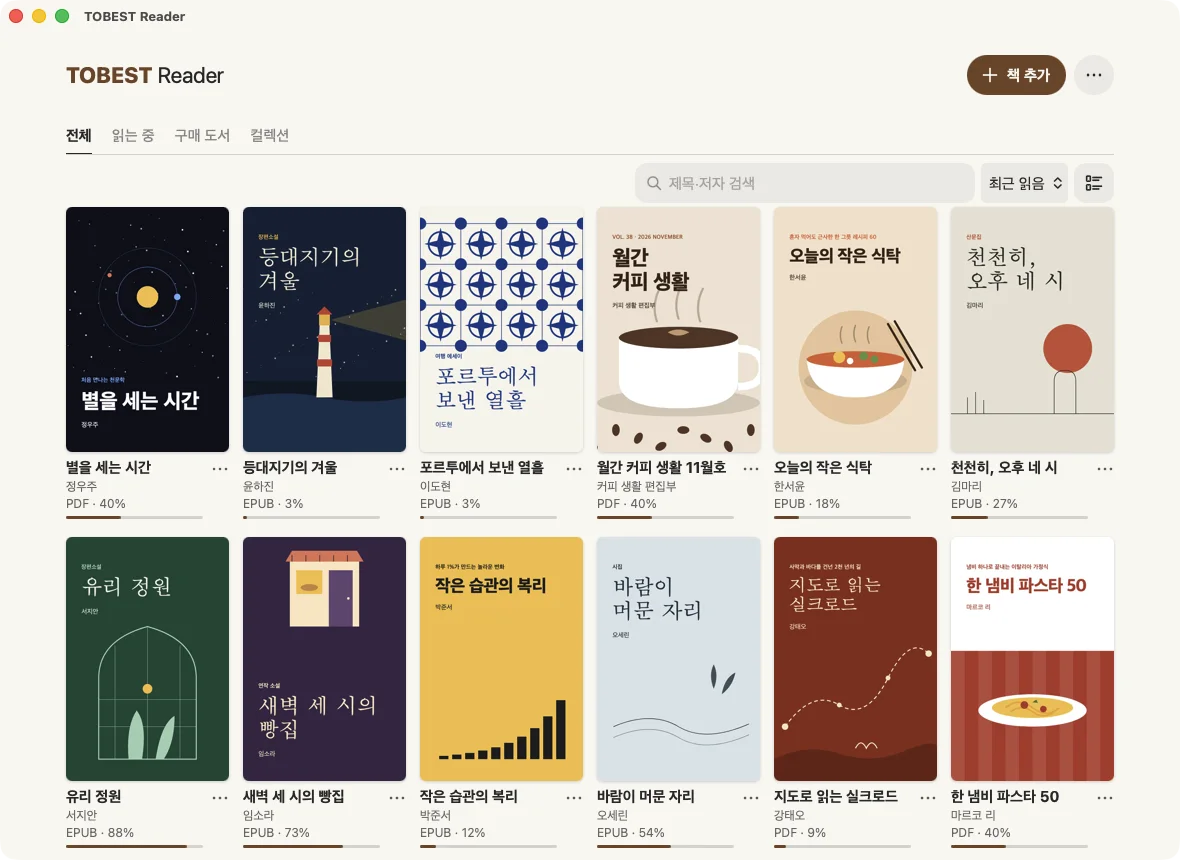
Find books by title or author and sort by recently read. Books in the same series are grouped into collections automatically.
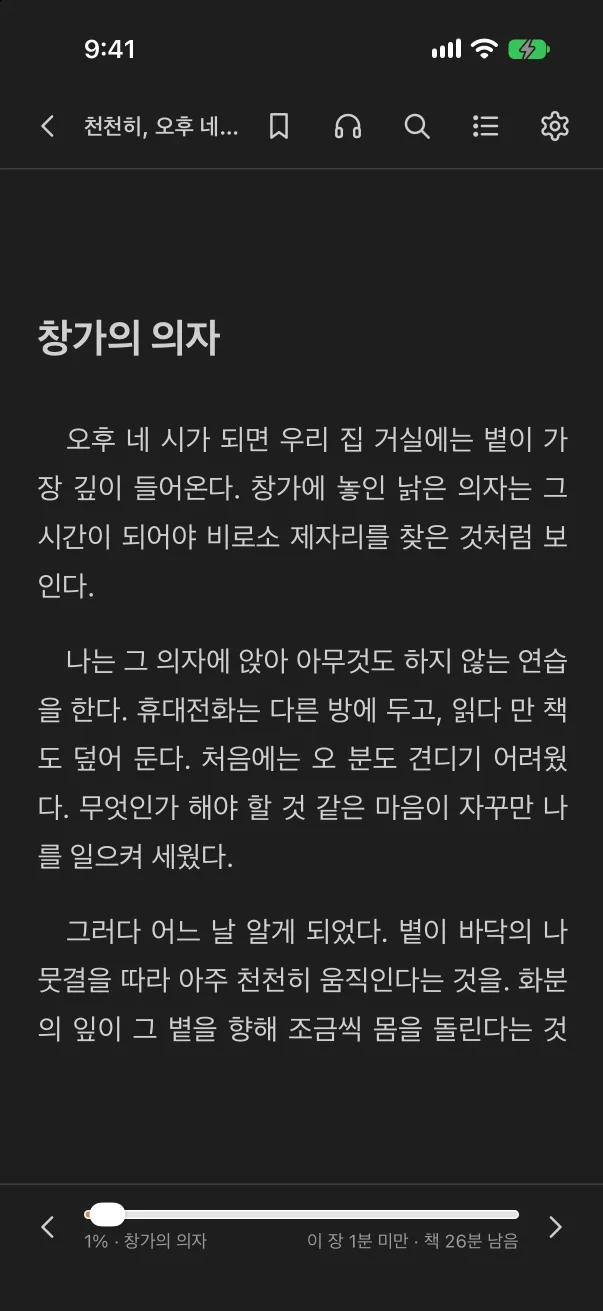
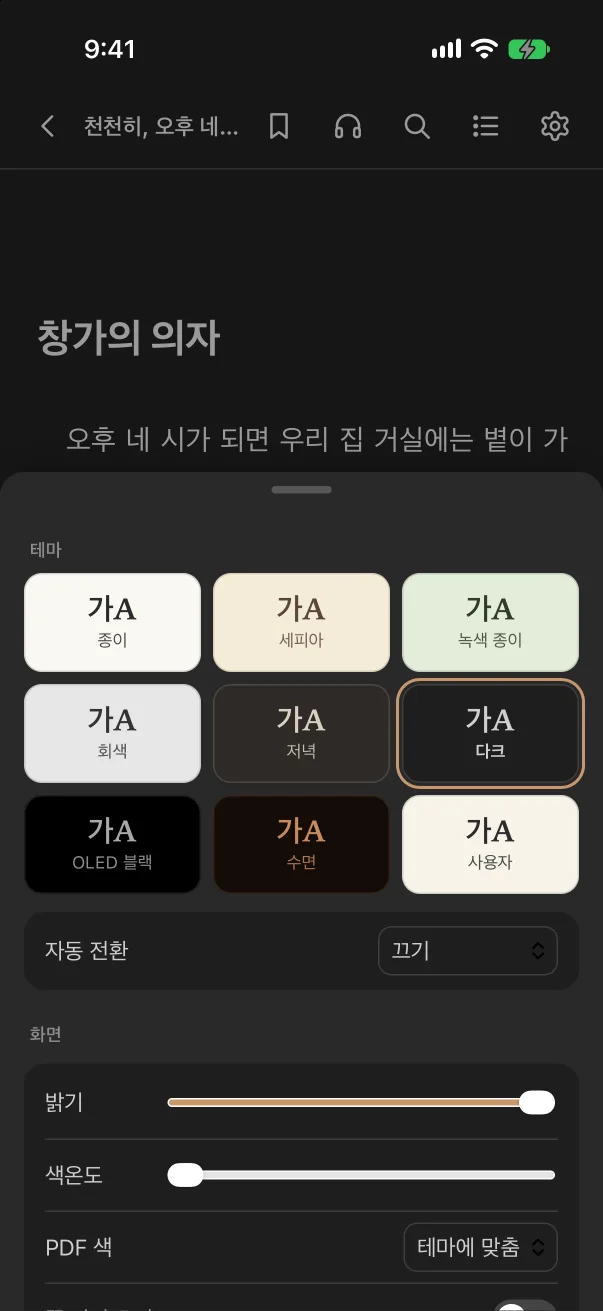
Nine reading themes
Paper, Sepia, Green Paper, Dark, OLED Black, Bedtime and more. Adjust brightness and warmth, and switch between day and night themes automatically.
Fonts and layout
Font, size, line spacing, letter spacing, paragraph spacing, margins and line length. Add your own font files as well.
Highlights, notes, bookmarks
Highlight in four colours and add notes. See contents, bookmarks and highlights in one panel; search the full text and export as Markdown.
Read aloud
Hear the text in your device's voice, at the speed you choose, with the screen kept awake while you listen.
Folder library
Add a folder of books and they appear in your library without being copied. Your original files are never changed or deleted.
No ads, no tracking
There are no ads or analytics. Your own files stay on your device; sync sends only reading positions and highlight places, never their note text.
There are tools for bilingual editions and commentaries too: Korean–English side by side, and Bible references that open in place. Read the guide
Reading
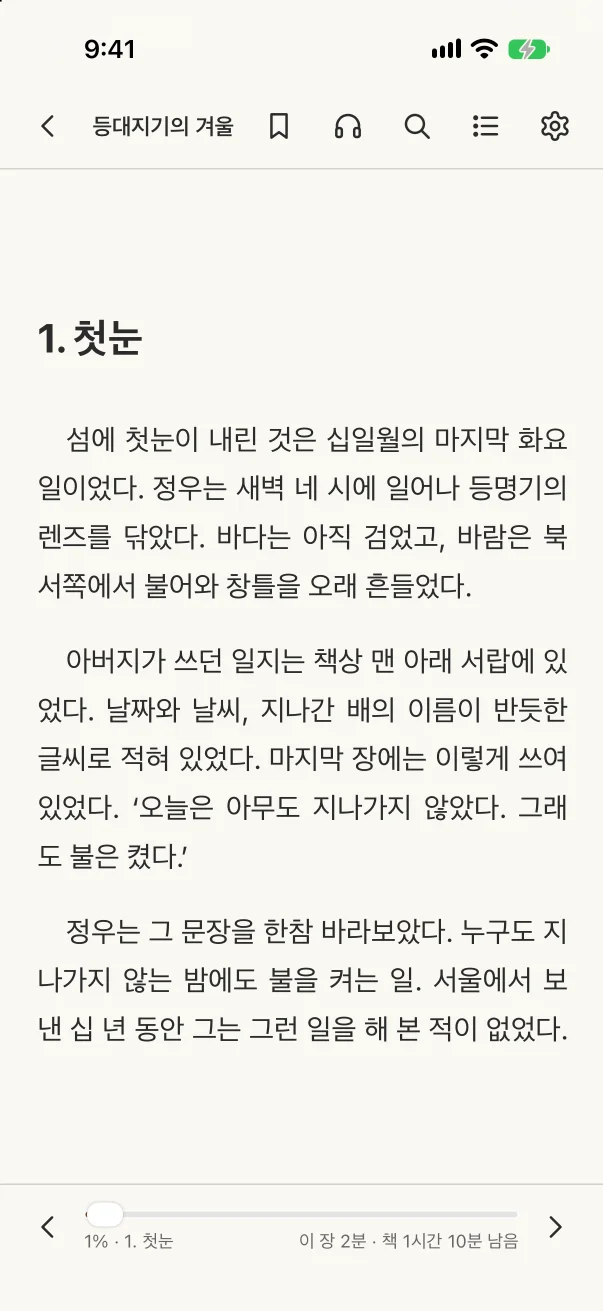
A page as calm as paper
Everything but the text steps aside. Tap the middle of the page to show or hide the toolbars.
Time left in the chapter and the book
Drag the progress bar to jump anywhere
Turn pages by tap, swipe or keyboard — or read in a continuous scroll
Display
Display settings made for your eyes
Choose a theme and set brightness and warmth once; every book opens the same way.
Nine themes plus custom colours, with a contrast check
Day and night themes by system setting or schedule
PDFs in their original colours or matched to the theme
Navigation
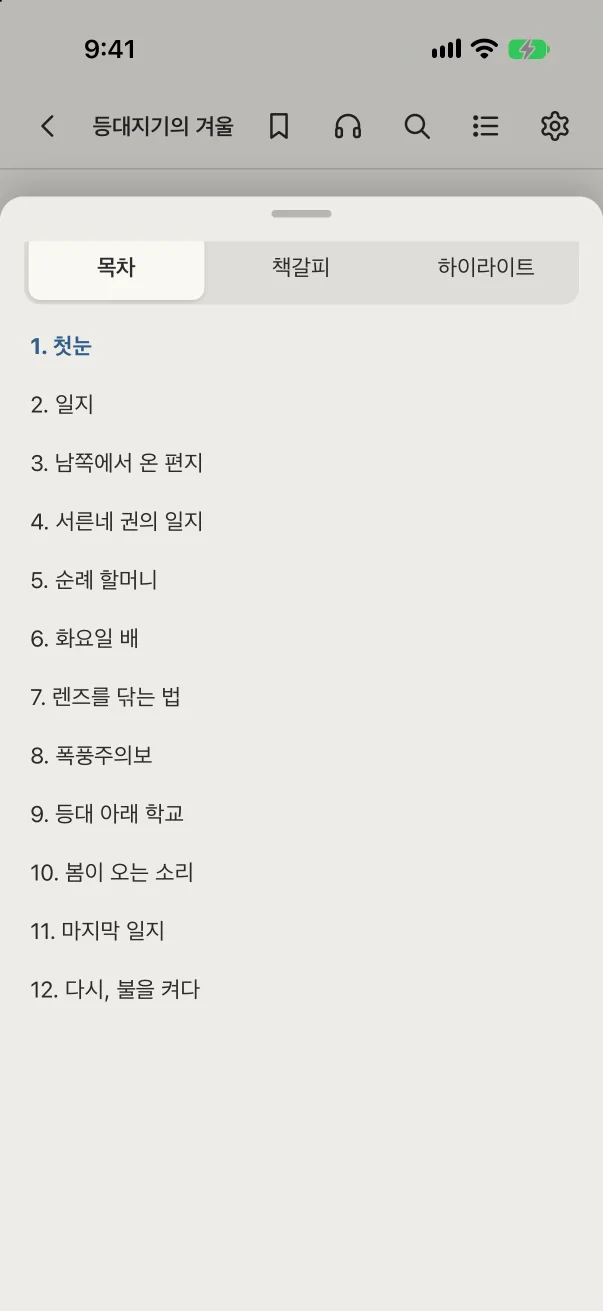
Contents, bookmarks and highlights in one panel
Never lose your way in a long book. Move between the contents and your marks with a tab.
Contents · Bookmarks · Highlights tabs (plus a Bible tab in Bible commentaries)
Full-text search; jump straight to a Bible chapter and verse
Return to your previous place after following a link
Library
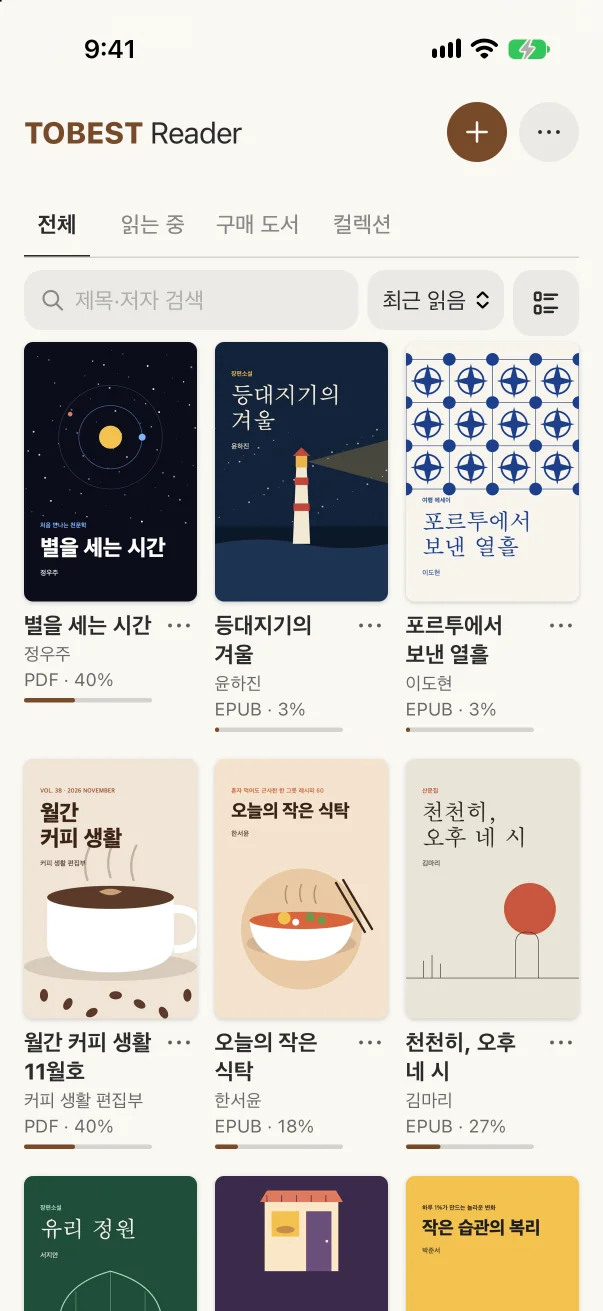
All your books in one library
Imported files, linked folders and purchased books come together in one place.
All · Reading · Purchased · Collections
Search by title or author; sort by recent, added, title or author
Books in the same series are grouped into collections automatically
How it works
Three steps is all it takes
Install, add books, read. The guide has the details.
01
Install
Get the app for your device under Download. It's free, and you can start without an account.
02
Add books
Tap + at the top right of the library to import EPUB and PDF files or add a folder of books. For ebooks you have bought, sign in under Purchased and download them.
03
Read
Tap a book to open it. Use Display Settings in the top bar to set the theme, font and margins you like.
Yes. The app is free and has no ads. You can read your own EPUB and PDF files without signing up.
Which files can I read?
EPUB and PDF. Any DRM-free file opens, and ebooks bought at TOBESTBOOKS (tobestbooks.com) are read in this app too.
Can I read ebooks bought from other stores?
Books protected by another store's DRM can't be opened. The app tells you when you import one; please read it in that store's app. DRM-free EPUB and PDF files work wherever they came from.
Can I buy books in the app?
The app has no purchases. Buy at tobestbooks.com, then sign in to the app with the same email and download the book under Purchased.
On how many devices can I read purchased books?
Up to six devices per account. To add another, remove a device you no longer use under Manage Devices in the app. You can remove devices up to three times in 30 days.
Can I read offline?
Yes. Purchased books you have downloaded open offline, and a network error alone never locks a book. You only need a connection to download new books and to sync.
What is synced?
When you are signed in, the reading position, bookmarks and highlights sync to your other devices. Your own EPUB and PDF files continue when each device has the same file; only places and highlight colors are sent, never note text, file names or book text (notes stay on the device where you wrote them). Purchased books sync notes too. Sync can be turned off in the settings on the Purchased screen.
Does the app change or delete my files?
No. Imported files are copied into the app, and linked folders are only read. Removing or hiding a book in the library leaves the original file as it is.
How is my personal information handled?
There are no ads or analytics, and your files and reading history stay on your device. Only when you sign in do we keep purchase and device records and synced reading records (reading positions, highlight places and the like) on our server. Book files and their text are never sent. See the privacy policy.
How do I update the app?
Store apps are updated by the store. The Mac and Windows apps downloaded from this site tell you about new versions and update themselves.
How do I delete my account?
Sign in to the app and choose Delete Account, or follow the account deletion instructions. After deletion you can no longer download or read purchased books, and this can't be undone.
Download
Start reading, free
Install it on every device you use — phone, tablet and computer. Sign in with the same account and continue reading on any of them.
When you write, please include your device and operating system, the app version (from Check for Updates in the app, or the store), the book title and the steps that led to the problem. It helps us answer faster.