
01Getting started
TOBEST Reader works without an account. On first launch you see an empty library: add your own EPUB and PDF files, or download ebooks you have bought.
- The app follows your device language. Change it under Language in the library's ⋯ menu.
- Turn on Continue the last book on start in the same menu to go straight back to your book next time.
02Adding books
Tap + at the top right of the library for two options.
Import files
The app keeps a copy of the EPUB and PDF files you choose, so you can keep reading even if the originals are moved or deleted. You can pick several files at once; books already in the library are skipped.
Add a folder
Link a folder of books and they appear in the library without being copied. New books you put in the folder show up too. Refresh or remove linked folders under Library Folders in the library's ⋯ menu.
03Downloading purchased books
- Buy the book at tobestbooks.com.
- In the app, open Purchased in the library, enter the email you used to buy and tap Send Code.
- Enter the 6-digit code from the email within 10 minutes to sign in.
- Tap Download next to a book. If a download stops, tap again to resume.
Purchased books are stored encrypted for that device and open offline once downloaded.
Manage devices
One account works on up to six devices. Under Manage Devices you can see them and remove one you no longer use (up to three times in 30 days). Signing out keeps downloaded books readable on that device.
04Reading and turning pages
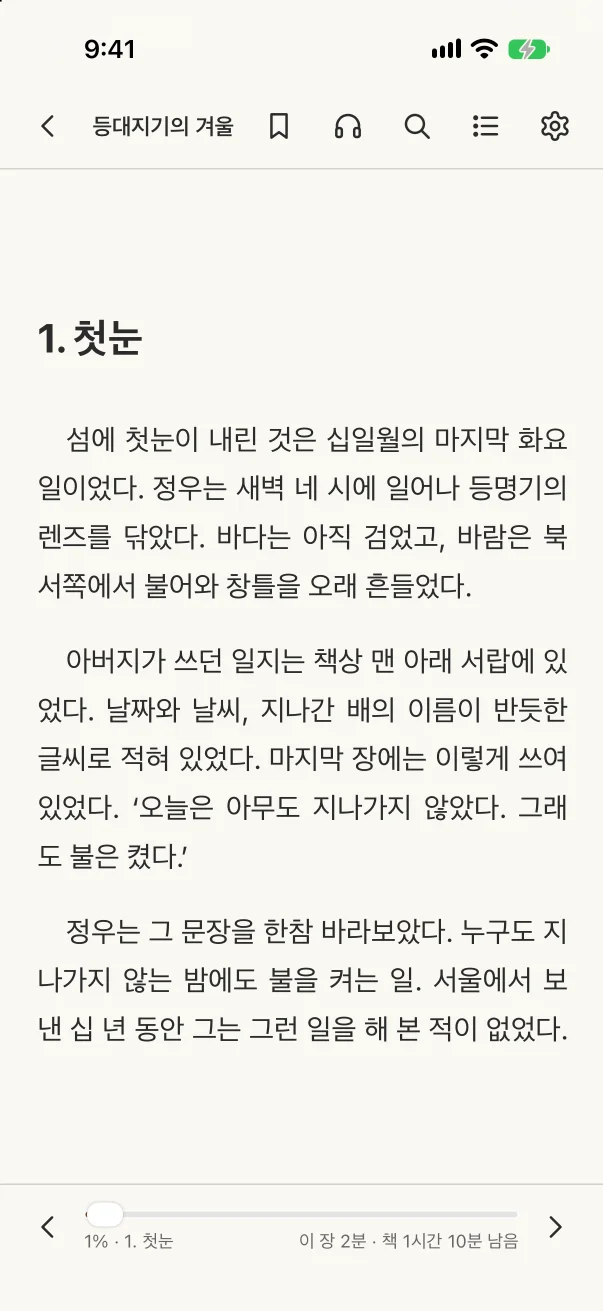
- Turn pages: tap or swipe on the left or right side, or use the arrow keys and space bar. Tap to Turn can be set to top/bottom or turned off.
- Show or hide the toolbars: tap the middle of the page.
- Jump: drag the progress bar at the bottom. After following a link, ↩ Go Back returns to where you were.
- Scrolled reading: turn it on in Display settings to read in a continuous scroll.
- Android: you can turn pages with the volume keys.
- Tap a picture to view it full screen; pinch or double-tap to zoom.
05Display settings
Changes in Display Settings in the top bar apply to every book.
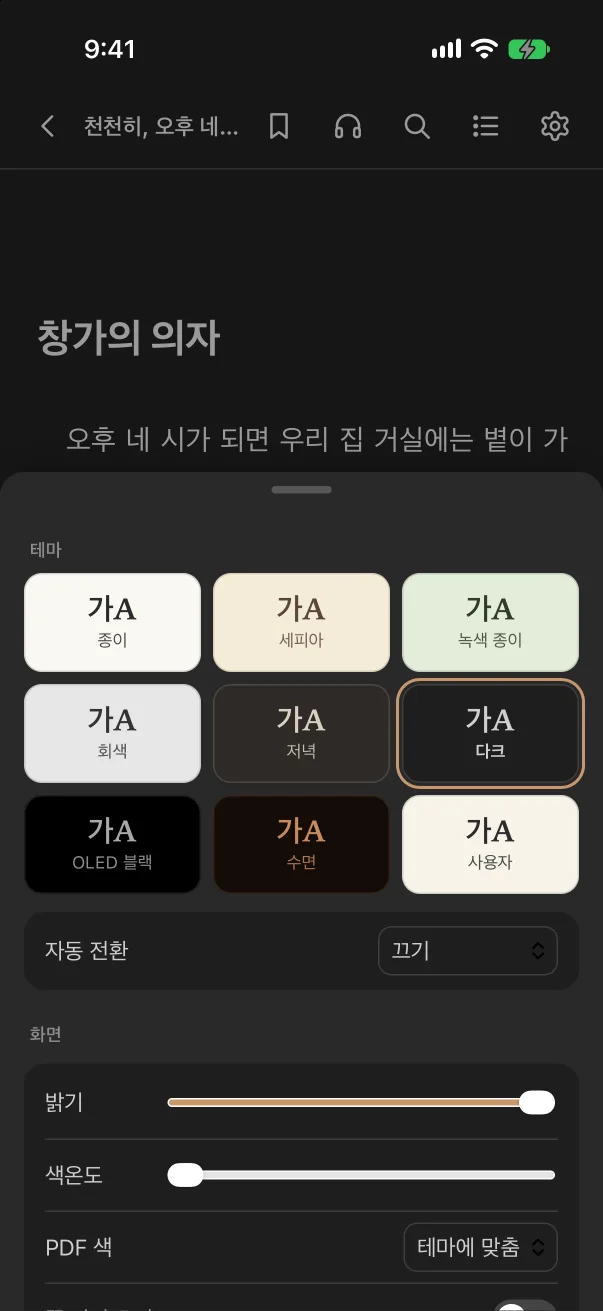
Theme and screen
- Choose Paper, Sepia, Green Paper, Gray, Dusk, Dark, OLED Black, Bedtime or Custom. Custom lets you pick background, text and link colours, and warns when the contrast is low.
- Auto Switch: follow the device's dark mode, or set night hours to switch between a day and a night theme.
- Use Brightness and Warmth for a screen that's easy on the eyes.
Text and page
- Font (original, serif, sans-serif or your own), size, line spacing, letter spacing, paragraph spacing, justification and English hyphenation.
- Margins (narrow, normal, wide), line length (short, normal, long) and two pages on wide screens.
- Add font files you own under My Fonts.
06Reading PDFs
PDF pages have a fixed layout, so how you zoom matters. Choose under PDF Zoom in Display settings.
- Fit text: trims the page margins and fits just the text to the screen width — the best way to read a PDF on a small screen.
- Fit page · Fit width · 1.5× · 2×: see the whole page, or zoom to a fixed scale.
- Double-tap the middle of the page to switch between Fit text and Fit page.
- With Keep zoom and position across pages, the next page shows the same area.
- Set PDF Colors to Match Theme to darken PDFs in dark themes; for photo-heavy documents Original is better.
07Bilingual books and the Bible
TOBESTBOOKS' Korean–English commentaries are made for this app.
- Under Bilingual in Display settings, choose both languages, Korean only or English only.
- Tap a Bible reference in the text to read the passage in place. Footnotes open in a pop-up.
- In the contents panel, the Bible tab takes you to a book and chapter; type a reference such as “Gen 1:3” in search to jump there.
08Highlights, notes, bookmarks and search
- Highlights: select text to highlight it in yellow, green, blue or pink and add a note. Dictionary, translate and copy are on the same bar.
- Bookmarks: mark the current page with the bookmark button in the top bar.
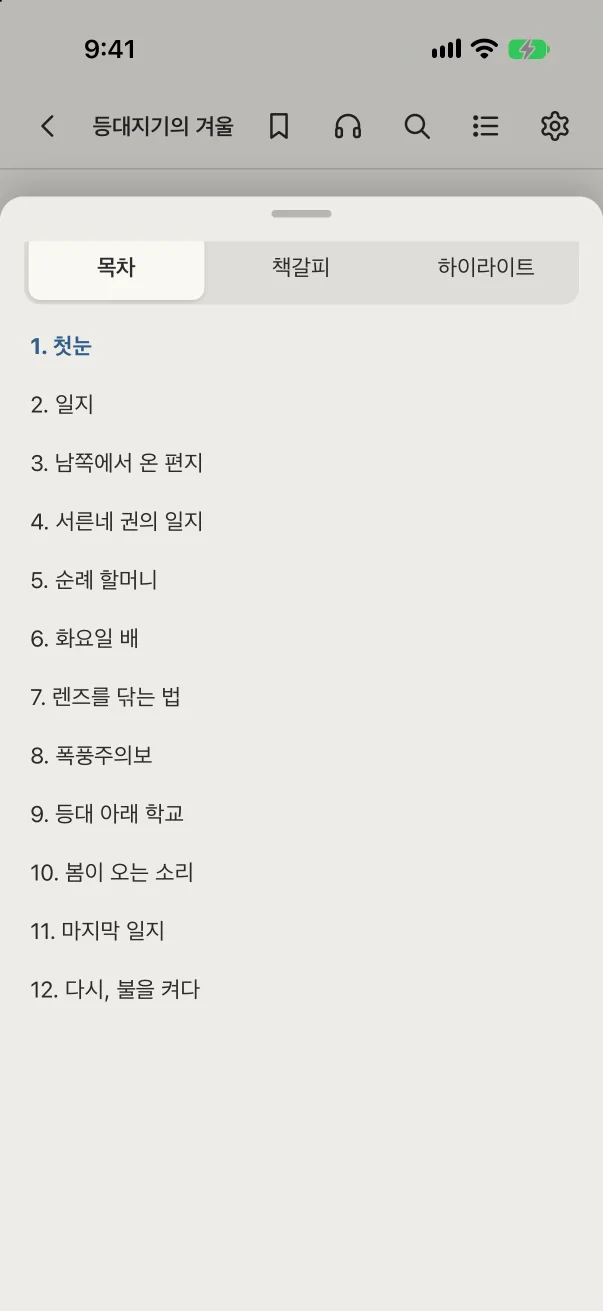
- All in one place: the contents button shows tabs for contents, bookmarks and highlights. Copy All (Markdown) in the highlights tab moves them to your notes app.
- Search: search the full text from the top bar.
Depending on the publisher's settings, some purchased books limit how much text can be copied, or don't allow copying and sharing.
09Read aloud
Tap Read Aloud in the top bar to hear the text from the current page in a voice installed on your device. Pause, resume and change the speed; pages turn by themselves as reading continues. Turning on Keep Screen On While Reading helps.
10Continuing on other devices
Devices signed in with the same TOBESTBOOKS account sync the reading position, bookmarks and highlights.
- Sign in with the same email in the app on each device.
- For your own EPUB and PDF files, put the same file on each device. The app recognises a book by the file's contents, so the file name and how you added it (import or folder) may differ. Books in a folder start syncing once you have opened them on that device.
- After reading on one device, open the same book on another: it opens at that place, with a note that it continues from your other device.
- Your own files: only the reading position and the places and colors of bookmarks and highlights are sent. Note text, file names and book text are not, so notes stay on the device where you wrote them, and the receiving device finds the highlighted text in its own copy of the book.
- Purchased books: notes sync too.
If you don't want this, sign in and turn off Sync reading position, bookmarks, highlights and notes across devices on the Purchased screen.
11Reading time and updates
- Reading time: Reading Time in the library's ⋯ menu shows today, the last 7 and 30 days, the total and your most-read books.
- Updates: store apps are updated by the store. In the Mac and Windows apps downloaded here, Check for Updates in the library's ⋯ menu installs a new version and restarts the app.
- Delete account: while signed in, choose Delete Account and type your account email. Order records are kept for five years as required by Korean e-commerce law.